How to Build an Inventory Management System in Google Sheets
Build an inventory management system in Google Sheets with low-stock alerts and a free template method, plus a simple way to attach photos and files to items.

You know you have stock. You just don’t always know how much, where it is, or when you last reordered.
A shared spreadsheet fixes most of that, and Google Sheets is a genuinely capable place to run inventory for a small business or a single location.
This guide builds an inventory Google Sheets can run for a small business from scratch: live stock values, automatic low-stock alerts, and clean categories. No add-ons required to get started.
Let’s set it up.
Key Highlights
- A good Google Sheets inventory system tracks item, category, supplier, quantity, reorder level, and unit price in one table.
- A single formula gives you live stock value per item, and SUM gives you total inventory value at a glance.
- Conditional formatting flags any item at or below its reorder level automatically, so low stock turns red without you checking.
- Data validation dropdowns keep categories and suppliers consistent, which keeps your totals accurate.
- Text and numbers only go so far. UpSheet is a Google Sheets extension by The Conductor that lets you attach a product photo, supplier invoice, or spec sheet directly to each item’s row, so the whole product record lives in one place.
What should an inventory Google Sheets tracker include?
Start with the columns that answer your real questions: what do I have, how much, and when do I reorder?
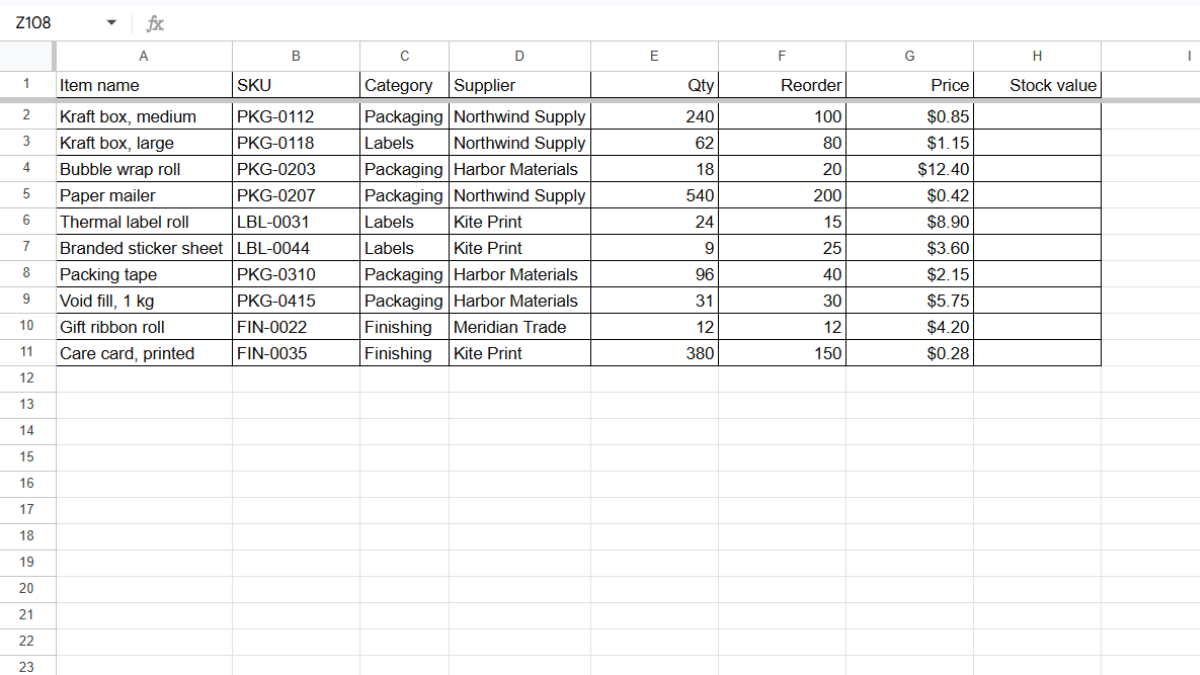
Open a new Google Sheet and create these headers in row 1:
- Item name (A)
- SKU (B)
- Category (C)
- Supplier (D)
- Quantity in stock (E)
- Reorder level (F)
- Unit price (G)
- Stock value (H)
That covers a lightweight but complete inventory record. You can add columns like location or last-ordered date later.
How do you calculate stock value automatically?
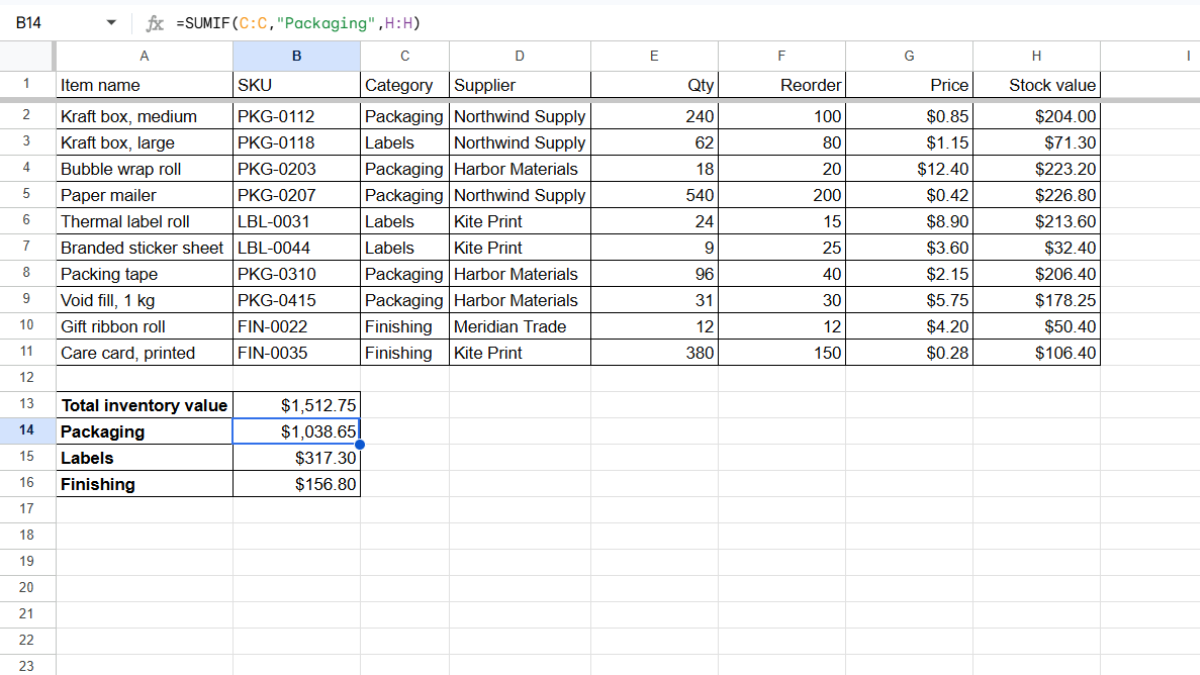
Stock value is quantity times unit price. In cell H2, enter:
=E2*G2
Drag it down the column, and every item shows its own live value.
For your total inventory value, drop this into a summary cell:
=SUM(H2:H)
Now the number updates itself every time a quantity or price changes.
To see value by category, use SUMIF:
=SUMIF(C:C, "Packaging", H:H)
Swap “Packaging” for any category name to total just that group.
How do you get automatic low-stock alerts?
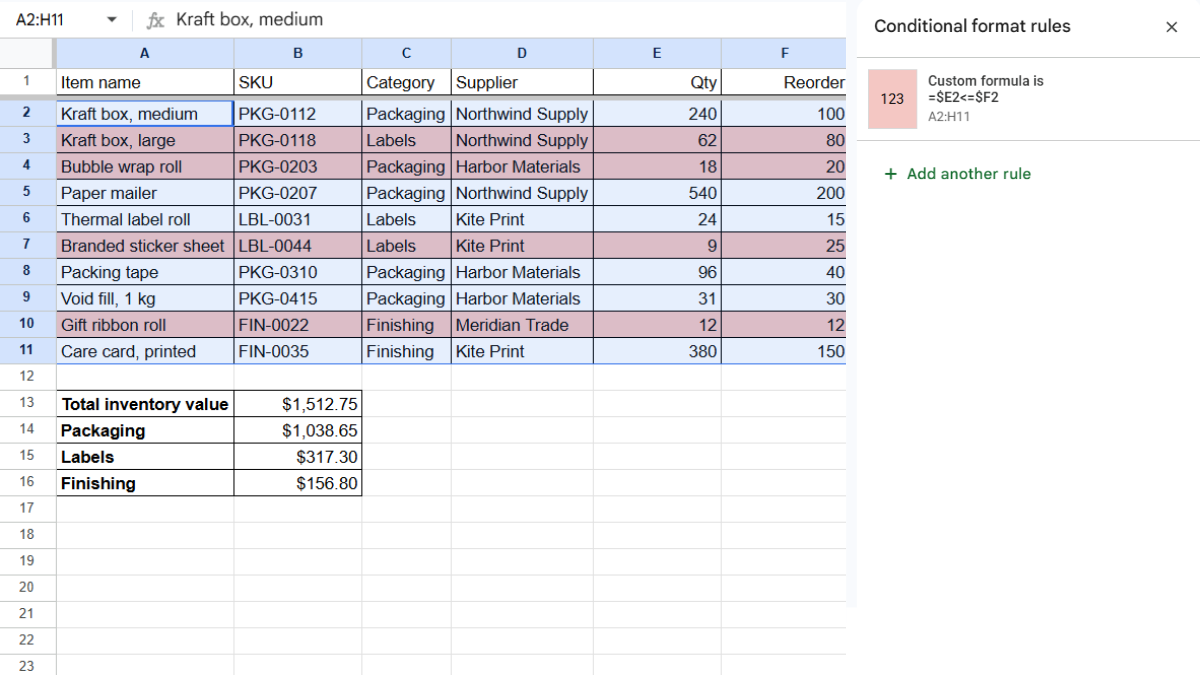
This is the feature that makes a spreadsheet feel like a system. You want any item at or below its reorder level to turn red on its own.
- Select your data rows (for example, A2:H100).
- Go to Format → Conditional formatting.
- Under Format rules, choose Custom formula is.
- Enter this formula:
=$E2<=$F2
- Set a red or orange fill, then click Done.
Now whenever stock drops to the reorder point, the row flags itself. No scanning required.
How do you keep categories and suppliers consistent?
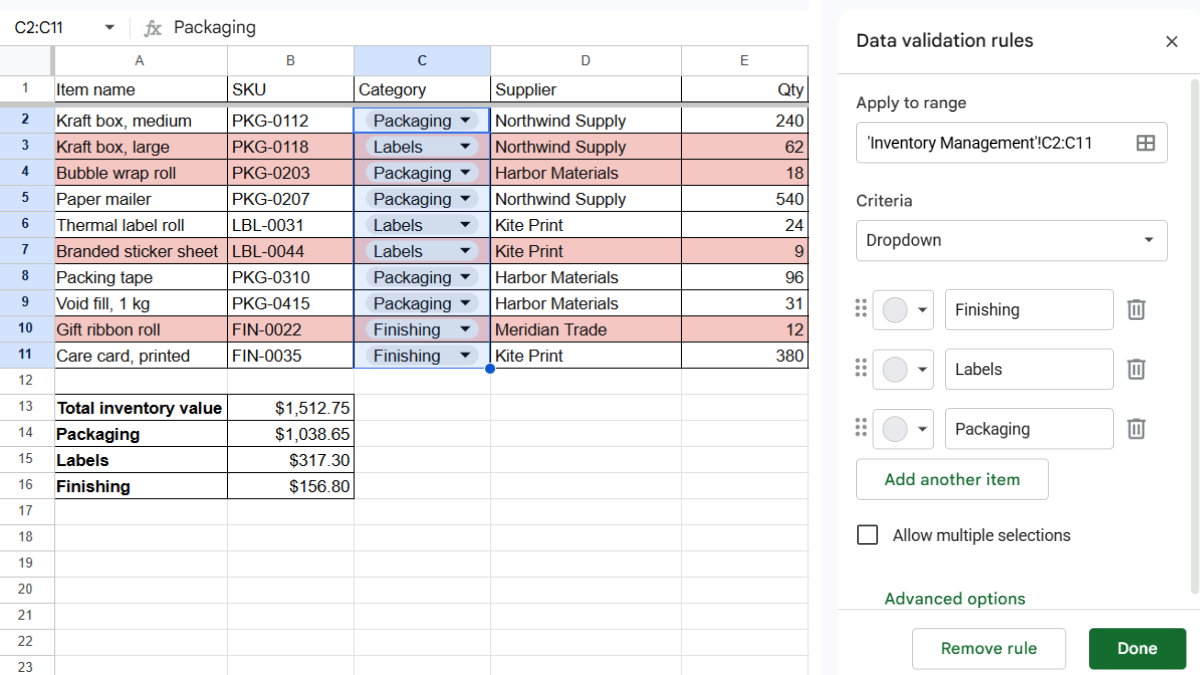
Typos break totals. If one row says “Packaging” and another says “packaging”, your SUMIF misses it. Dropdowns solve this.
- Select the Category column (C2 down).
- Go to Data → Data validation.
- Add a rule of type Dropdown, and list your categories.
- Repeat for the Supplier column.
Now every entry is a clean pick from a list, so your category totals stay trustworthy.
Where do the product files live?
Here’s the limit of a plain inventory sheet: it holds numbers and words, but not the files that go with each product.
The supplier invoice for that last order. The product photo your team keeps asking for. The spec sheet, the safety document, the packing slip. Those live somewhere else, in Drive, in email, in someone’s downloads folder, and the link back to the right item is fragile.
So you end up with an inventory sheet in one place and the product paperwork scattered everywhere else.
This is where UpSheet fits in. UpSheet is a Google Sheets extension, built by The Conductor, that lets you drag and drop files straight onto a cell. You can attach the supplier invoice, product photo, or spec sheet directly to each item’s row.
Drop a file on the row, and UpSheet stores it in a dedicated Google Drive folder it creates for that sheet, then marks the cell with a 📎 paperclip and a soft yellow highlight. Anyone with access clicks the cell to open the file.
Because inventory sheets get sorted and filtered constantly, this matters: in TABLE mode, UpSheet ties each file to its item with a hidden row ID, so attachments stay with the right product even after you sort by quantity or category. Drag, Drop, Done.
Frequently asked questions
Can Google Sheets be used for inventory management?
Yes. Google Sheets can run a full inventory system for a small business using a table of items, quantities, and reorder levels, with formulas for stock value and conditional formatting for low-stock alerts. It works best for single locations or modest catalogs.
How do I create a low-stock alert in Google Sheets?
Use conditional formatting with a custom formula. Select your data, open Format → Conditional formatting, choose Custom formula is, and enter =$E2<=$F2 (quantity column versus reorder-level column). Set a red fill so low items highlight automatically.
How do I total inventory value in Google Sheets?
Add a stock-value column with =quantity*unit price for each item, then total it with =SUM(H2:H). For value by category, use SUMIF, such as =SUMIF(C:C, "Category", H:H).
Can I attach product photos or invoices to items in Google Sheets?
Not with plain Google Sheets, but you can with UpSheet. It lets you drag a product photo, supplier invoice, or spec sheet onto an item’s row and stores it in the sheet’s Drive folder, so the full product record stays in one place.
Organize Your Work, Simplify Your Life
Your inventory numbers belong in Google Sheets. So should the photos, invoices, and spec sheets behind them.
With UpSheet, attach any file to any item without leaving your sheet, and stop hunting for that one supplier invoice.
Start your 14-day free trial. It works inside the Google Sheet you already use, so there’s nothing new to learn. Pro is $9.99/month (or $79.99/year) when you’re ready.