How to Build a Project Management System in Google Sheets
Build a project management system in Google Sheets with status tracking, a dashboard, and a free template method, plus files attached to every task.
Not every project needs dedicated software with a per-seat price and a two-week learning curve. Sometimes you just need everyone looking at the same list, updated in real time.
Google Sheets is quietly excellent at this. With status dropdowns, a little conditional formatting, and a simple dashboard, a plain sheet becomes a project tracker your whole team can run.
This guide builds a project management template Google Sheets runs for free: task ownership, live status, overdue alerts, and a dashboard that counts your progress for you.
Key Highlights
- A project management system in Google Sheets is a task table with owners, status, priority, and due dates.
- Dropdowns for status and priority keep everyone speaking the same language.
- Conditional formatting color-codes status and flags overdue tasks automatically.
- A small COUNTIF dashboard shows how many tasks are done, in progress, and not started at a glance.
- The tracker holds task names, but not the files behind them. UpSheet is a Google Sheets extension by The Conductor that lets you attach the brief, asset, or deliverable to each task’s row, so the plan and the work stay together.
What does a project management template Google Sheets need?
Open a new Google Sheet and create these columns:
- Task (A)
- Owner (B)
- Status (C)
- Priority (D)
- Start date (E)
- Due date (F)
- Progress % (G)
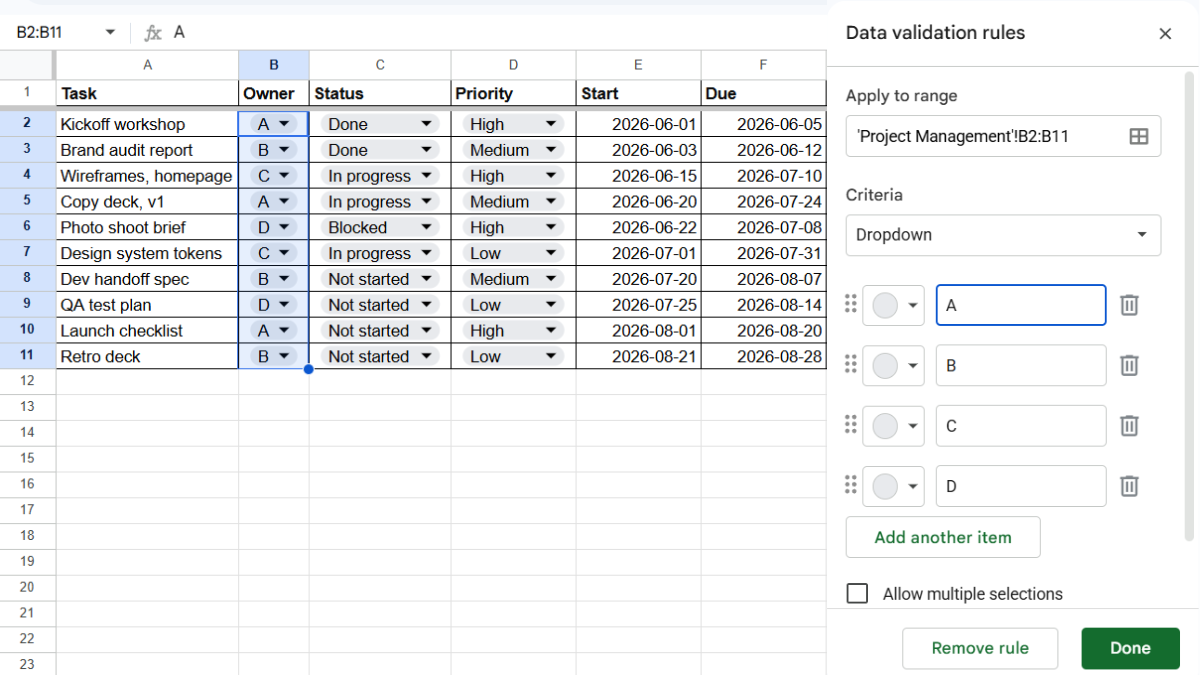
Make Status, Priority, and Owner dropdowns (Data → Data validation → Dropdown):
- Status: Not started, In progress, Done, Blocked.
- Priority: High, Medium, Low.
- Owner: your team members.
Dropdowns are what keep a shared tracker from turning into chaos.
How do you color-code status automatically?
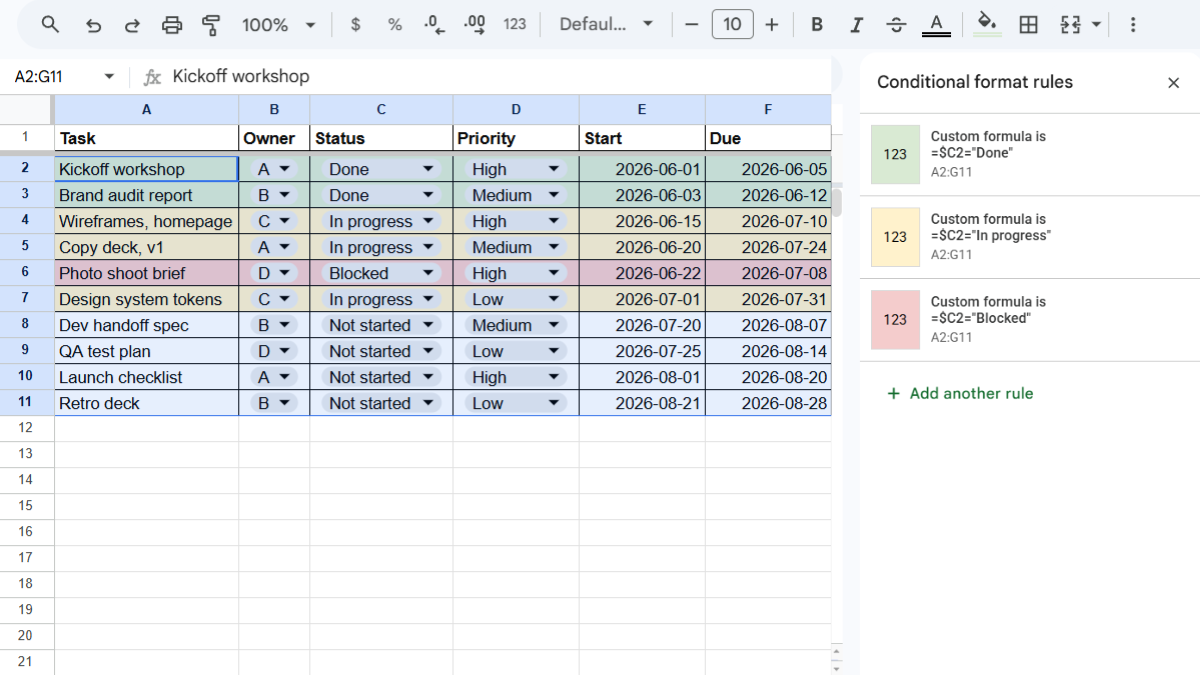
Conditional formatting makes status readable at a glance.
- Select your task rows and open Format → Conditional formatting.
- Add a rule: Text is exactly “Done”, green fill.
- Add another: Text is exactly “Blocked”, red fill.
- Add another: Text is exactly “In progress”, yellow fill.
Now the whole sheet tells its story in color, no reading required.
How do you flag overdue tasks?
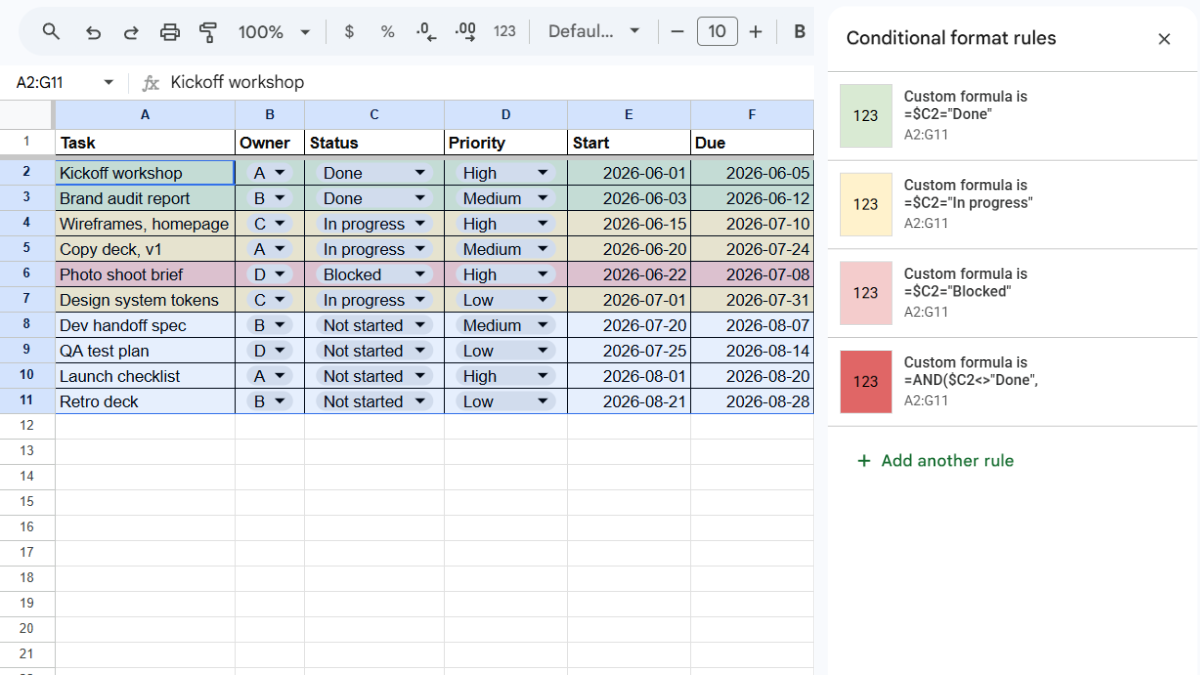
Add a rule that catches anything past its due date and not finished.
- With your rows selected, add a Custom formula is rule:
=AND($C2<>"Done", $F2<TODAY())
- Set a bold red fill and click Done.
Overdue, unfinished tasks now flag themselves each day you open the sheet.
How do you build a progress dashboard?
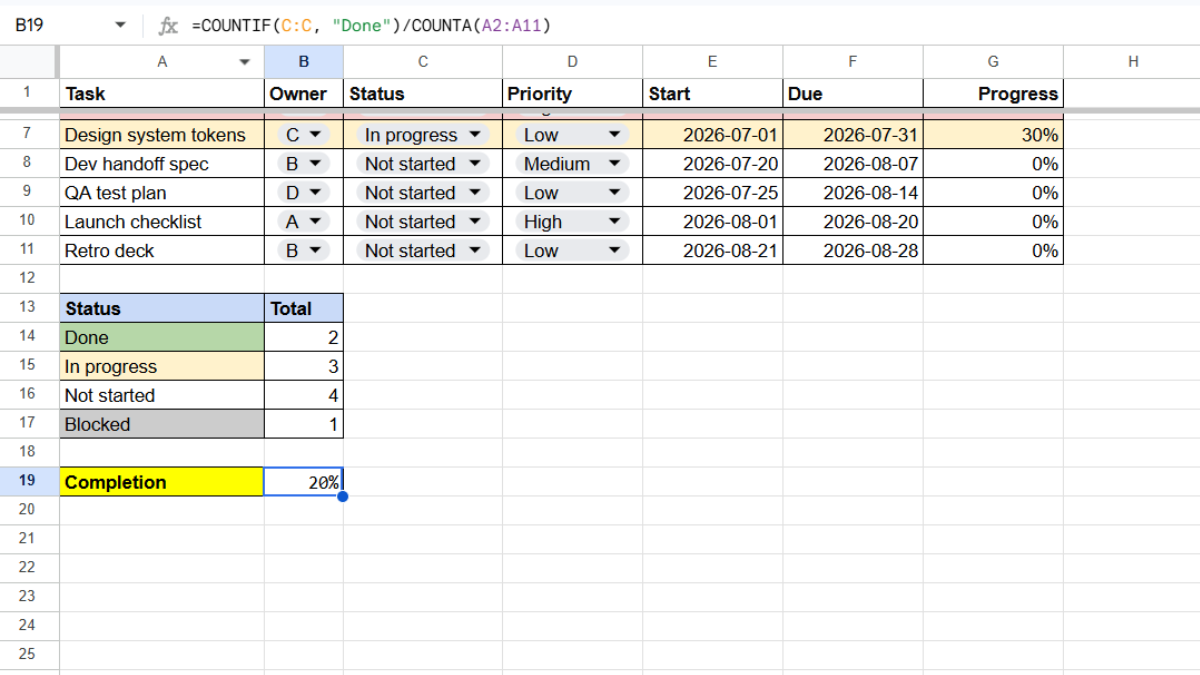
Create a small summary block, or a separate Dashboard tab, and count your tasks by status with COUNTIF:
=COUNTIF(C:C, "Done")
Repeat for “In progress,” “Not started,” and “Blocked.” For overall completion:
=COUNTIF(C:C, "Done")/COUNTA(A2:A)
Format that as a percentage. Now you have a live, one-glance view of where the project stands.
Where do the task files live?
Here’s where a spreadsheet tracker hits its ceiling. Every task has files: the creative brief, the reference doc, the finished deliverable. But the tracker only holds the task name and its status.
So the plan lives in Sheets while the actual work scatters across Drive, email, and Slack. A teammate opens a task, needs the brief, and starts asking around. Someone links a file locked to their personal Drive, and the request-access loop begins. The tracker knows the what, but can’t hand you the work.
This is where UpSheet fits in. UpSheet is a Google Sheets extension, built by The Conductor, that lets you drag and drop files straight onto a cell. You attach the brief, asset, or deliverable directly to each task’s row.
Drop a file on the task, and UpSheet stores it in a dedicated Google Drive folder for that sheet and marks the cell with a 📎 paperclip. Anyone with access opens the file from the task itself.
Because a project tracker gets sorted and re-prioritized constantly, this matters: in TABLE mode, UpSheet ties each file to its task with a hidden row ID, so attachments stay put even after you sort by status or due date. Teammates can attach too, so you can see whose work is where. Drag, Drop, Done.
Frequently asked questions
Can you use Google Sheets for project management?
Yes. Google Sheets works well for project management on small and mid-size projects using a task table with owners, status dropdowns, due dates, conditional formatting for overdue tasks, and a COUNTIF dashboard for progress.
How do I track project status in Google Sheets?
Add a status column as a dropdown (Not started, In progress, Done, Blocked), then use conditional formatting to color-code each status. A COUNTIF summary shows how many tasks sit in each state.
How do I highlight overdue tasks in Google Sheets?
Use conditional formatting with a custom formula such as =AND($C2<>"Done", $F2<TODAY()) and a red fill, so any unfinished task past its due date flags itself automatically.
How do I attach files to tasks in Google Sheets?
Use UpSheet. Drag the brief, asset, or deliverable onto a task’s row, and it saves to the sheet’s Drive folder with a paperclip marker, so the files behind each task stay with the plan.
Organize Your Work, Simplify Your Life
A project tracker tells your team what and when. UpSheet keeps the work, every brief, asset, and deliverable, attached to the tasks they belong to.
Start your 14-day free trial. It works inside the Google Sheet you already use, so there’s nothing new to learn. Pro is $9.99/month (or $79.99/year) when you’re ready.