How to Build a Finance Tracker in Google Sheets: The Complete Guide
Build a personal finance tracker in Google Sheets to see income, spending, and balance in one place, plus an easy way to keep every receipt attached.

Most money advice starts with “know where your money goes.” The problem is that knowing takes work, and apps that promise to do it for you want a bank login you’d rather not hand over.
A Google Sheets finance tracker is the middle path. You own the data, it costs nothing, and it takes about fifteen minutes to build.
This guide walks you through a complete finance tracker Google Sheets keeps in one place: every transaction, automatic category totals, and a running view of income versus spending.
Key Highlights
- A finance tracker in Google Sheets is really one clean transactions table plus a small summary that does the math.
- Log each entry with a date, description, category, type (income or expense), and amount, and the rest calculates itself.
- SUMIF totals your income and expenses separately, and a simple subtraction gives your balance.
- Category dropdowns keep your data tidy so your spending breakdown stays accurate.
- Numbers tell you how much. The receipts prove what for. UpSheet is a Google Sheets extension by The Conductor that lets you attach a receipt or statement directly to each transaction’s row, so proof and record live together.
What goes into a finance tracker Google Sheets build?
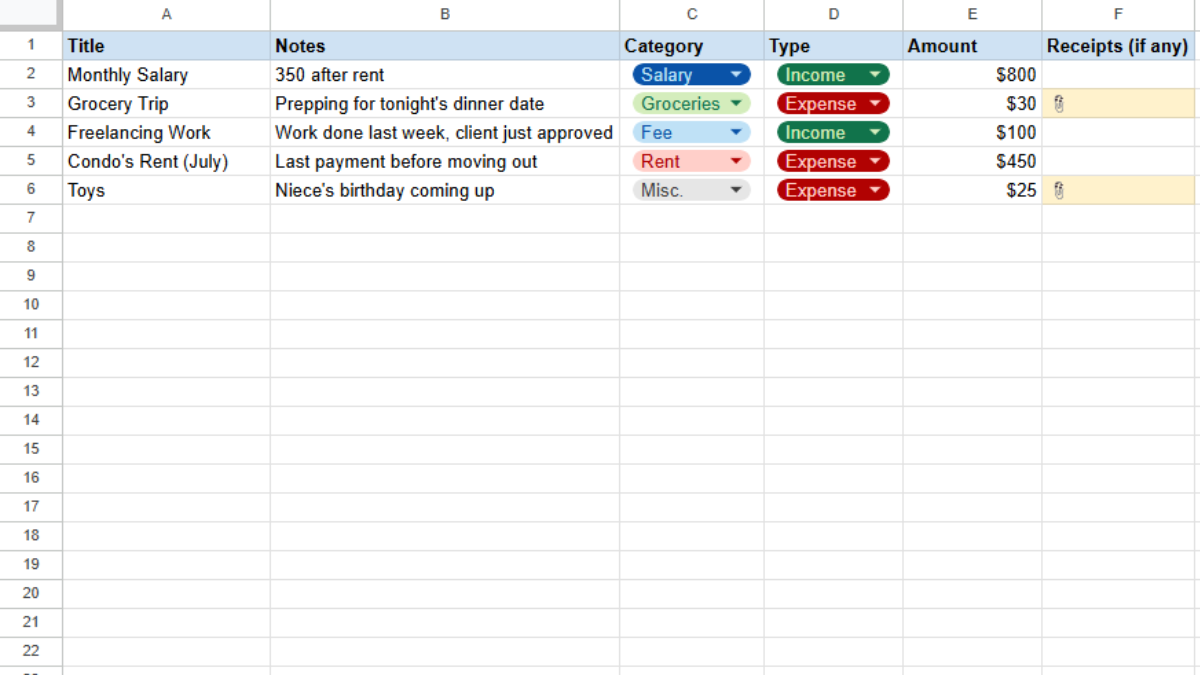
At its core, a finance tracker is a log. Open a new Google Sheet and create a tab called Transactions with these columns:
- Title (A)
- Notes (B)
- Category (C)
- Type (D), meaning Income or Expense
- Amount (E)
Every purchase, paycheck, and bill becomes one row. That’s the whole input.
To keep categories and types consistent, add dropdowns:
- Select a cell in column C, go to Insert → Dropdown, and list categories like Rent, Groceries, Transport, Income, or Misc.
- Do the same for column D with just Income and Expense.
How do you total income and spending automatically?
Create a second tab called Summary. This is where the tracker earns its keep.
For total income:
=SUMIF(Transactions!D:D, "Income", Transactions!E:E)
For total expenses:
=SUMIF(Transactions!D:D, "Expense", Transactions!E:E)
For your balance, subtract one from the other:
=B1-B2
(Assuming income sits in B1 and expenses in B2.)
Now, every time you add a transaction, these three numbers update on their own.
How do you see spending by category?
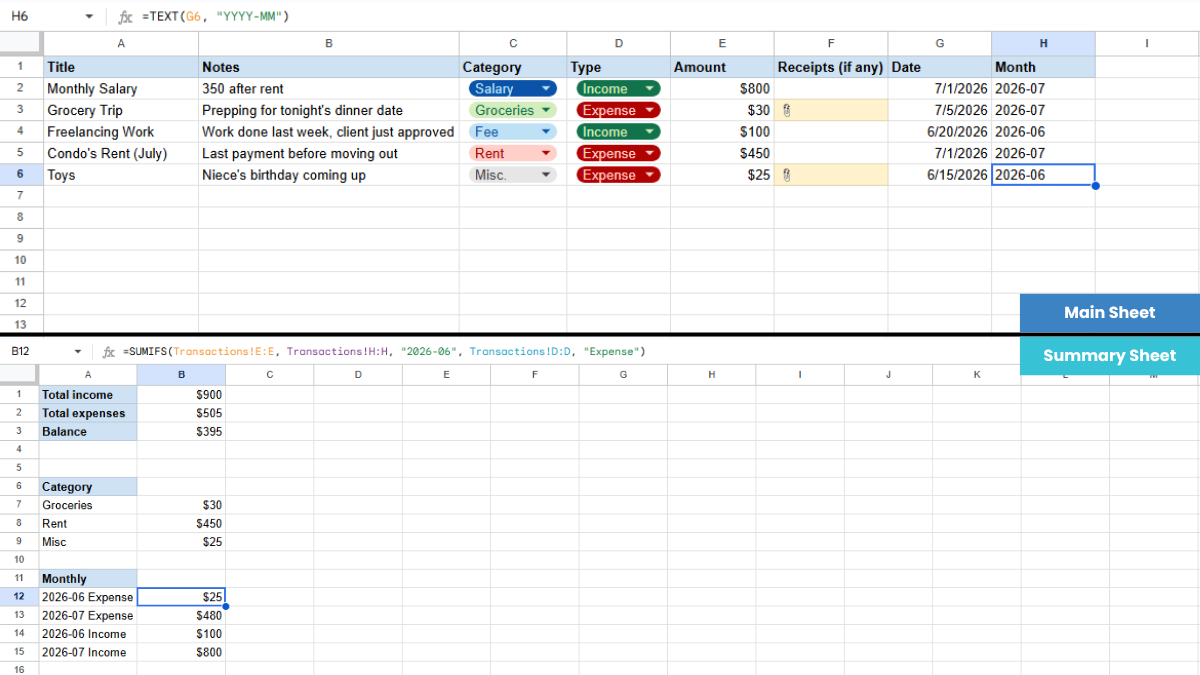
This is the view that changes behavior. In your Summary tab, list your categories down a column, then next to each use SUMIFS:
=SUMIFS(Transactions!E:E, Transactions!C:C, "Groceries", Transactions!D:D, "Expense")
Copy it down and swap the category name. You’ll see exactly where the money went.
To break it down by month, add a helper column in Transactions:
=TEXT(A2, "YYYY-MM")
Then total any month with SUMIFS against that helper column.
Where do your receipts go?
Here’s the gap in every finance tracker. Your rows say you spent $240 at an electronics store. But was that the monitor you can expense, or something personal? Six months later, at tax time or during a reimbursement, the number alone can’t tell you.
The receipt can. It just isn’t in your sheet. It’s in your email, or a photo on your phone, or gone.
This is where UpSheet fits in. UpSheet is a Google Sheets extension, built by The Conductor, that lets you drag and drop files straight onto a cell. You can attach a receipt or statement directly to the transaction’s row.
Drop the receipt on the row, and UpSheet saves it to a dedicated Google Drive folder for that sheet, then marks the cell with a 📎 paperclip. When you need proof, you click the cell. That’s it.
In TABLE mode, UpSheet keeps each receipt tied to its transaction even after you sort by date or category, so the proof never drifts to the wrong row. Drag, Drop, Done.
Going further: three trackers built on this foundation
This finance tracker is the base. Depending on your goal, you can specialize it:
- An expense tracker if you mainly want to watch spending.
- A budget planner if you want to set limits and compare budgeted versus actual.
- A bill tracker if never missing a due date is the priority.
Each is a focused build on the same idea, and each pairs naturally with receipts and statements attached where they belong.
Frequently asked questions
Is Google Sheets good for personal finance?
Yes. Google Sheets is a strong personal finance tool because you own your data, it’s free, and a simple transactions table with SUMIF totals gives you a clear picture of income, spending, and balance without linking a bank account.
How do I track expenses by category in Google Sheets?
Add a category to each transaction using a dropdown, then use SUMIFS in a summary, such as =SUMIFS(amount range, category range, "Groceries", type range, "Expense"). Copy it for each category to see a full breakdown.
Can I attach receipts to my finance tracker in Google Sheets?
Yes, with UpSheet. It lets you drag a receipt or statement onto a transaction’s row and stores it in the sheet’s Drive folder, so the proof stays attached to the record even as you sort and filter.
How do I show monthly totals in Google Sheets?
Add a helper column with =TEXT(date, "YYYY-MM") to label each transaction’s month, then total any month with SUMIF or SUMIFS against that helper column.
Organize Your Work, Simplify Your Life
A finance tracker tells you where your money goes. UpSheet keeps the receipts that prove it, attached to the exact rows they belong to.
Start your 14-day free trial. It works inside the Google Sheet you already use, so there’s nothing new to learn. Pro is $9.99/month (or $79.99/year) when you’re ready.