How to Build a Task Tracker in Google Sheets
Build a task tracker in Google Sheets with checkboxes, due-date alerts, and priorities, then attach the files each task needs right to its row.
A to-do app is overkill when all you want is a simple, shared list that shows what’s done and what’s next. Google Sheets does that in about 5-10 minutes, with checkboxes you can actually tick.
The trick is a few small touches: a checkbox to mark things complete, priorities to sort by, and a nudge when something’s overdue.
This guide builds lightweight task tracking Google Sheets handles from scratch, then shows you how to keep each task’s files attached to the task itself.
What does task tracking Google Sheets need?
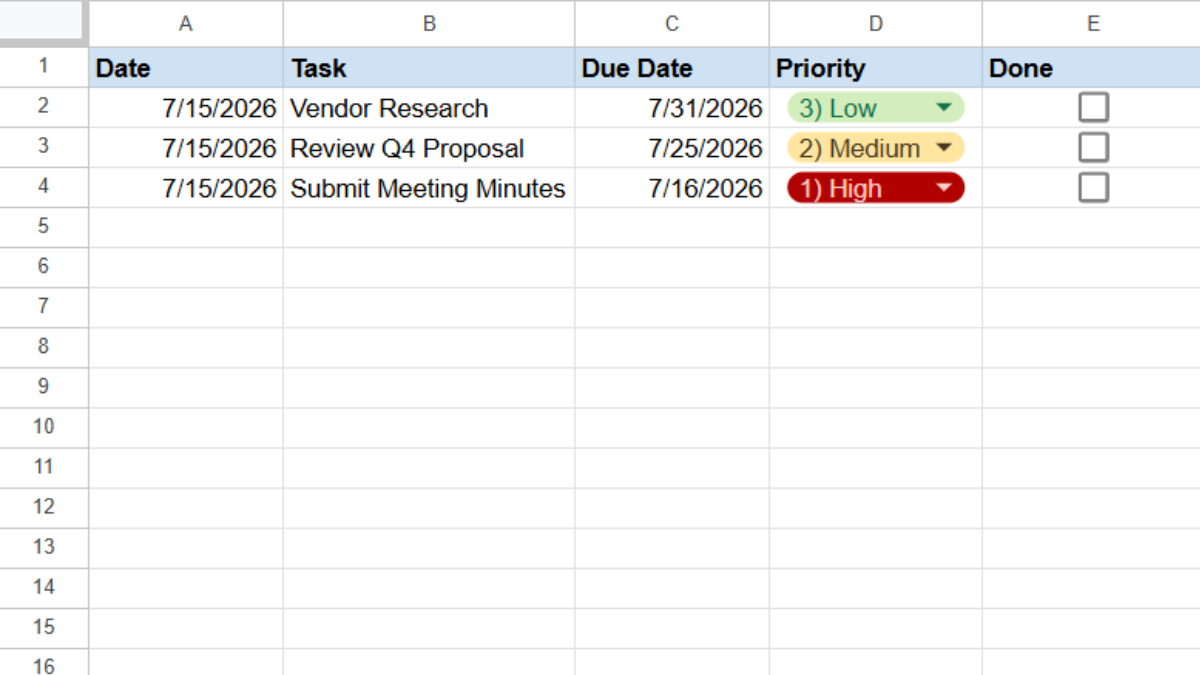
Keep it minimal so it’s actually pleasant to use. Open a new Google Sheet and add:
- Task (A)
- Priority (B)
- Due date (C)
- Done (D)
Make Priority a dropdown (Data → Data validation → Dropdown) with High, Medium, and Low.
For the Done column, select the cells and go to Insert → Checkbox. Now each task gets a real checkbox you can tick.
How do you gray out completed tasks?
When a task is done, it should fade into the background. Conditional formatting handles it.
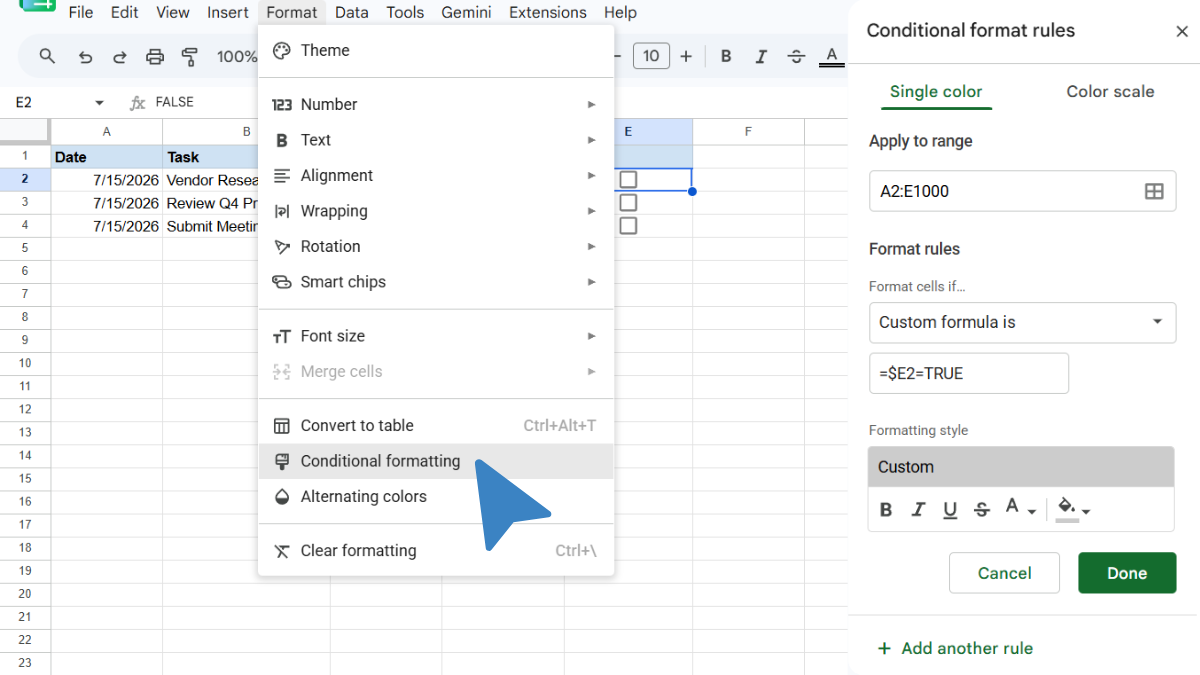
- Select your task rows (for example, A2:E1000).
- Go to Format → Conditional formatting.
- Choose Custom formula is and enter (In this example, E2 is our “Done” checklist column):
=$E2=TRUE
- Set a light gray fill (and, if you like, gray text) and click Done.
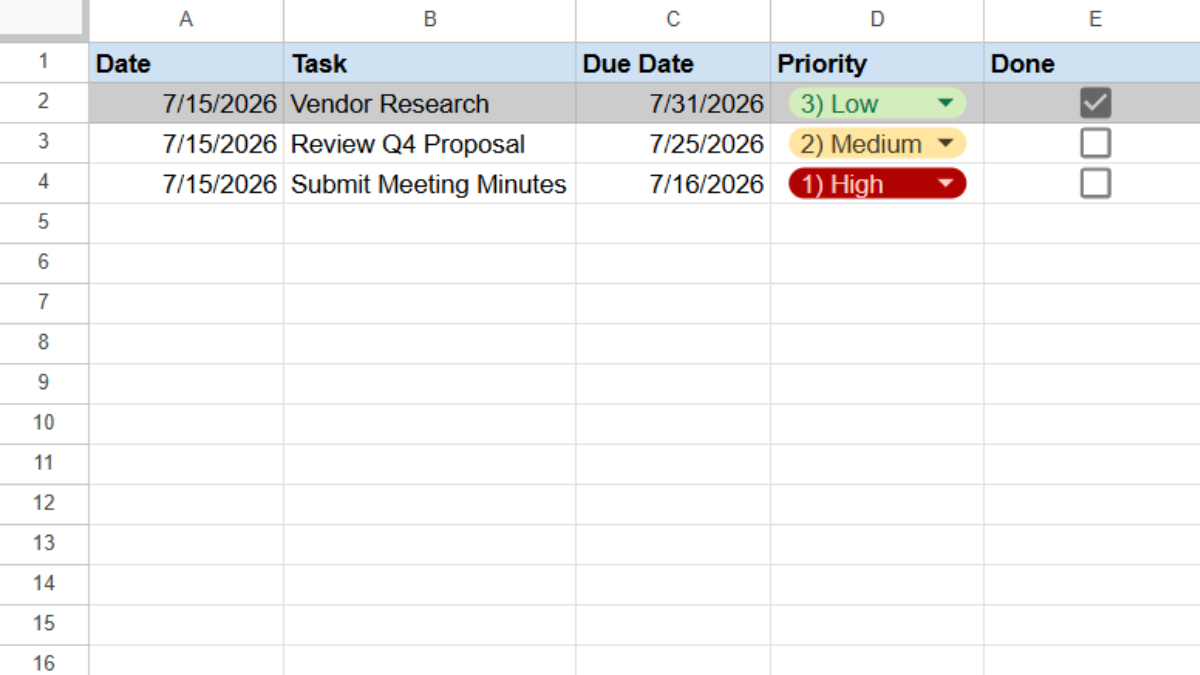
Ticking the checkbox now dims the whole row, so your eyes go straight to what’s left.
How do you flag overdue tasks?
Add a rule that catches anything past due and not yet done.
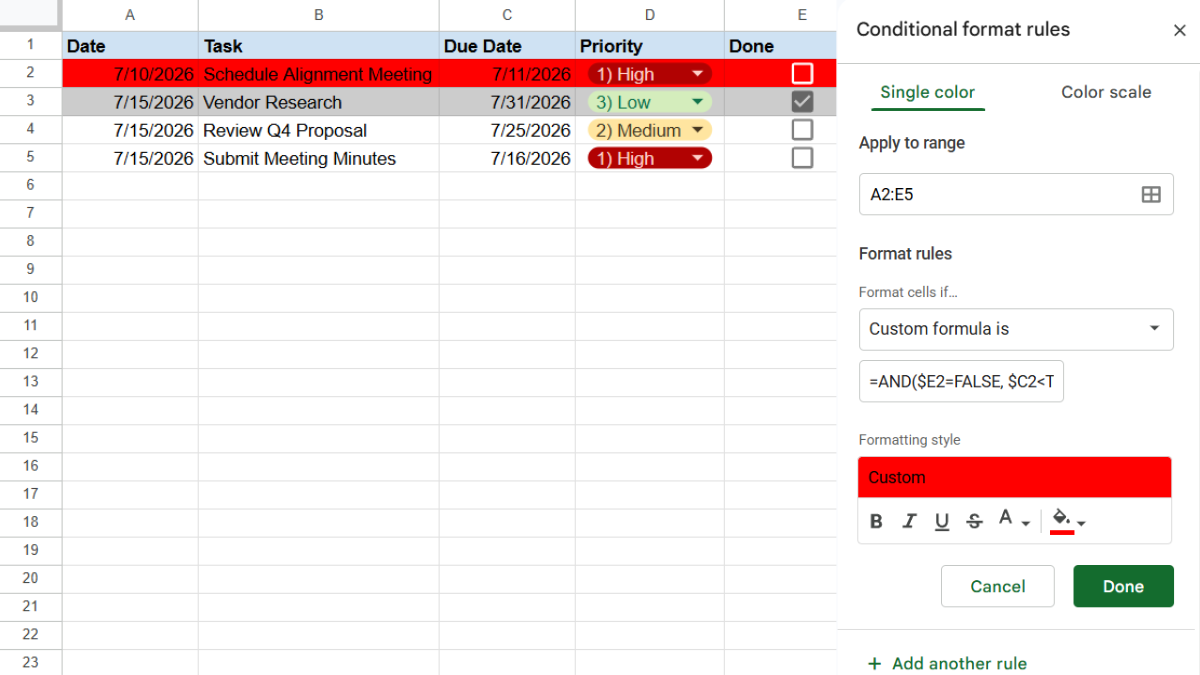
- If you’ve noticed, the range to apply isn’t A2:E1000 as before; otherwise, every single row that you haven’t added a task yet will be filled with red since there will be no “date” to adhere to the format rules.
- With your rows selected (in this example, A2:E5), add another Custom formula is rule:
=AND($E2=FALSE, $C2<TODAY())
- Set a red fill and click Done.
Unfinished tasks past their due date now turn red on their own, every time you open the sheet.
How do you sort by priority?
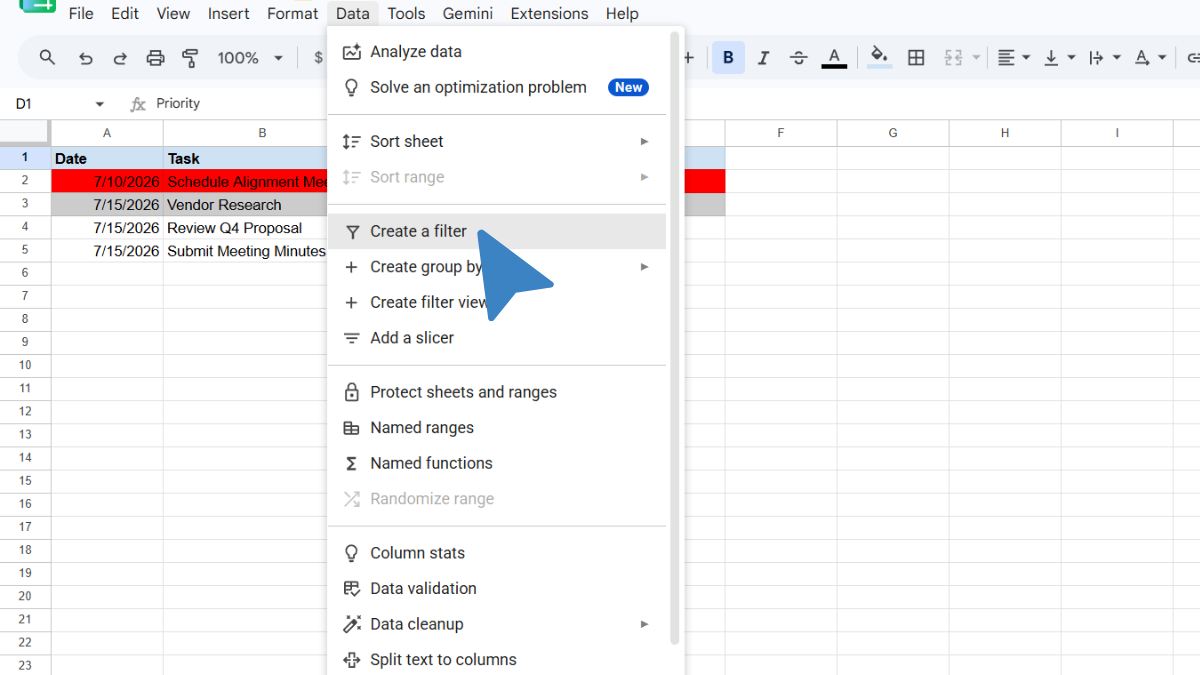
Because Priority is a clean dropdown, sorting is reliable. Select the title row (in our example, row A1 to E1), and go to Data → Create a filter. For a custom High-Medium-Low order, add a hidden helper column that maps each priority to a number (High = 1, Medium = 2, Low = 3) and sort by that.
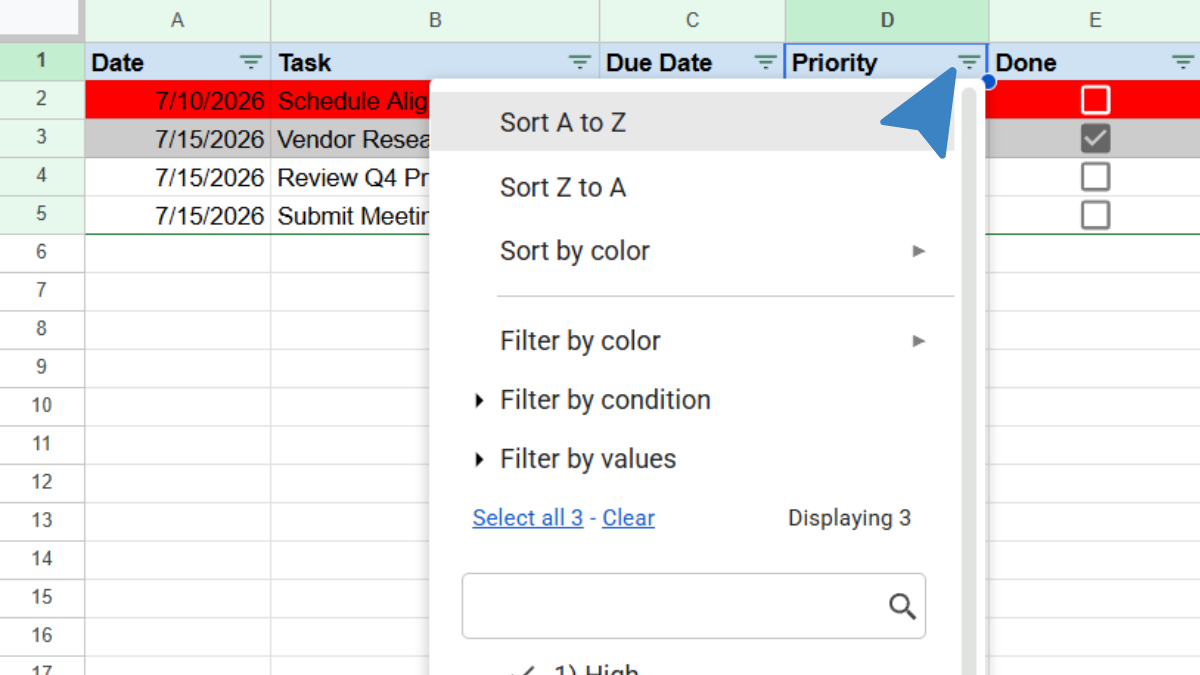
Now you can select Sort A to Z if you want to sort by high-low priority tasks; or Sort Z to A if you want to sort by low-high priority tasks.
Where do the task’s files live?
Here’s the small frustration that adds up. A task says “Send the updated deck to the client.” Simple. Except the deck is a file, and the file isn’t in your tracker. It’s in Drive, or Slack, or an email thread, and getting from the task to the actual file is a detour every single time.
Multiply that across a full task list and you’ve built a to-do list that can’t point to any of the work it describes.
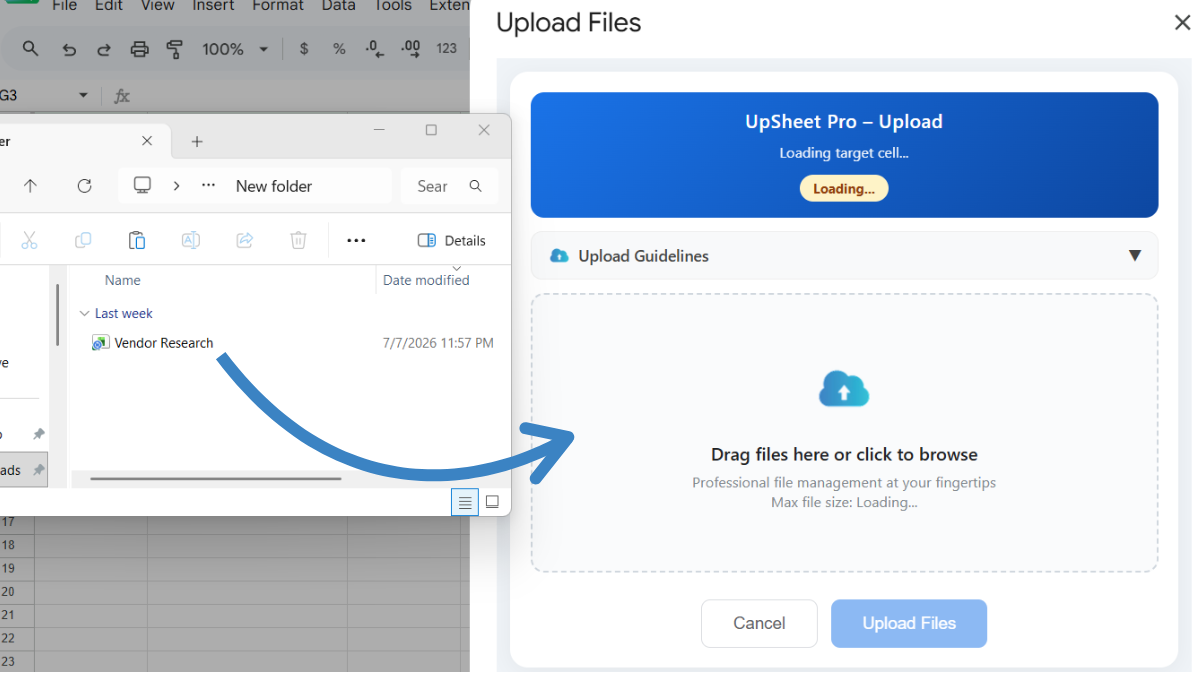
This is where UpSheet fits in. UpSheet is a Google Sheets extension, built by The Conductor, that lets you drag and drop files straight onto a cell. You attach the file a task needs directly to its row.
Drop the file on the task, and UpSheet stores it in a dedicated Google Drive folder for that sheet and marks the cell with a 📎 paperclip. When you work the task, the file opens from the same row.
In TABLE mode, each file stays tied to its task even after you sort by priority or due date, so attachments never end up on the wrong line. Drag, Drop, Done.
Frequently asked questions
How do I make a task tracker in Google Sheets?
Create a table with task, priority, due date, and a done checkbox (Insert → Checkbox). Add conditional formatting to gray out finished tasks and flag overdue ones, and use a priority dropdown so you can sort by what matters.
How do I add a checkbox in Google Sheets?
Select the cells where you want checkboxes, then go to Insert → Checkbox. Each cell becomes a tickable box that reads as TRUE when checked, which you can use in formulas and conditional formatting.
How do I cross off or gray out completed tasks in Google Sheets?
Use conditional formatting with the custom formula =$D2=TRUE (pointing at your checkbox column) and a gray fill, so ticking a task dims its row automatically.
How do I attach files to tasks in Google Sheets?
Use UpSheet. Drag the file a task needs onto its row, and it saves to the sheet’s Drive folder with a paperclip marker, so the work stays attached to the task even as you sort the list.
Organize Your Work, Simplify Your Life
A task tracker tells you what’s left. UpSheet makes each task point to the file it needs, so there’s no detour between your list and your work.
Start your 14-day free trial. It works inside the Google Sheet you already use, so there’s nothing new to learn. Pro is $9.99/month (or $79.99/year) when you’re ready.