How to Create a Project Plan in Google Sheets
Create a project plan in Google Sheets with objectives, milestones, and deliverables in one free template, plus the brief attached right where you plan.

A project plan is different from a task list. A task list is the doing. A plan is the thinking: the goal, the scope, the milestones, and who owns what, agreed before the work starts.
Google Sheets is a natural home for this. It’s shareable, everyone can comment, and the plan stays in one link instead of a document nobody can find.
This guide builds a clear, reusable project plan template Google Sheets makes easy to copy: overview, objectives, scope, milestones, and deliverables, all in one sheet.
Key Highlights
- A project plan in Google Sheets captures the thinking behind a project: overview, objectives, scope, milestones, and deliverables.
- Structure it as labeled sections plus a milestones table, not a loose task list.
- A status dropdown on milestones keeps the plan alive as work progresses.
- Keep it reusable with File → Make a copy so every project starts from the same shape.
- A plan references documents it can’t contain: the brief, the contract, the research. UpSheet is a Google Sheets extension by The Conductor that lets you attach those source documents right to the plan, so context lives with the plan.
What sections does a project plan template Google Sheets need?
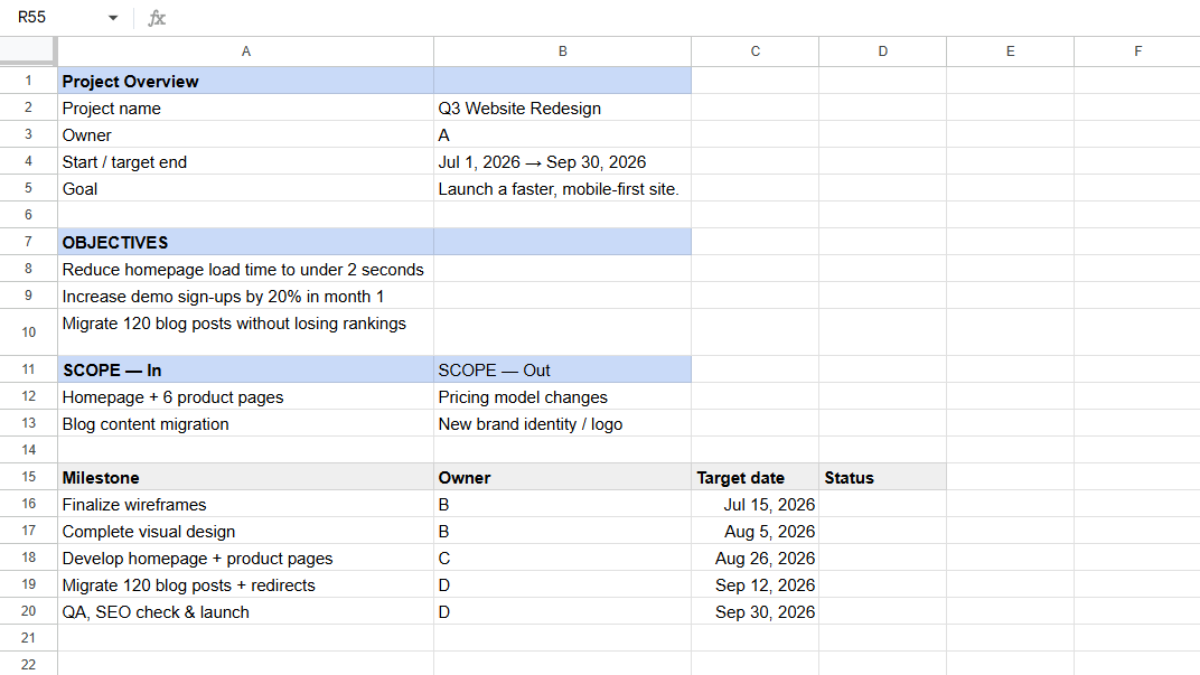
Open a new Google Sheet and lay it out as a document with clear sections down the page:
- Project overview: project name, owner, start and target-end dates, and a one-line goal.
- Objectives: the specific outcomes this project must deliver.
- Scope: what’s in, and just as importantly, what’s out.
- Milestones: the key checkpoints (a table, covered below).
- Deliverables: the tangible things you’ll hand over.
- Risks and notes: anything that could derail the plan.
Use bold section headers and a little spacing so the plan reads top to bottom.
How do you build the milestones table?
Milestones are the backbone. Create a table with:
- Milestone (A)
- Owner (B)
- Target date (C)
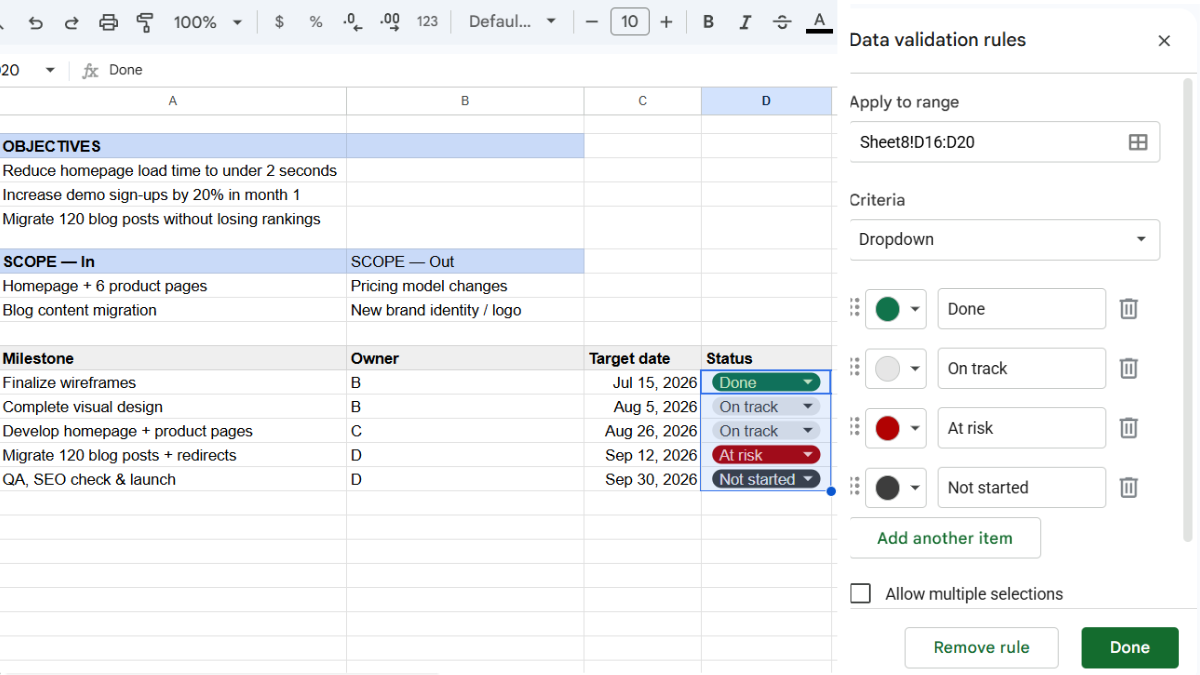
- Status (D)
Make Status a dropdown (Data → Data validation → Dropdown) with Not started, On track, At risk, and Done. Add conditional formatting so At risk turns red and Done turns green, giving the plan a live pulse.
How do you make the plan reusable?
A good plan structure is worth reusing. Once your layout works:
- Clear the specific content but keep the section headers and the milestones table.
- Go to File → Make a copy for each new project.
- Rename the copy and fill in the new project’s details.
Your team now starts every project from the same trusted shape, which makes plans faster to write and easier to read.
Where do the source documents live?
Here’s the tension in every project plan. The plan references things it can’t hold: the signed statement of work, the client brief, the research deck the objectives came from, the contract that defines the scope.
Those documents are the why behind the plan. But they sit in Drive or email, disconnected from the plan that depends on them. When someone questions a scope decision, the answer is in a file nobody can quickly find.
This is where UpSheet fits in. UpSheet is a Google Sheets extension, built by The Conductor, that lets you drag and drop files straight onto a cell. You attach the brief, the SOW, or the research directly to the plan, next to the section it supports.
Drop the file on the relevant cell, and UpSheet stores it in a dedicated Google Drive folder for that sheet and marks the cell with a 📎 paperclip. The plan and the documents behind it finally live together.
In TABLE mode, attachments stay tied to their rows as the plan evolves, so context never gets separated from the milestone it explains. Drag, Drop, Done.
Frequently asked questions
How do I write a project plan in Google Sheets?
Lay out labeled sections for overview, objectives, scope, milestones, and deliverables, then add a milestones table with owner, target date, and a status dropdown. Keep it reusable by copying the sheet for each new project.
What’s the difference between a project plan and a task tracker?
A project plan captures the thinking (goals, scope, milestones, and deliverables) agreed before work starts, while a task tracker manages the day-to-day doing. Many teams keep both: a plan for direction and a tracker for execution.
How do I make a reusable project plan template in Google Sheets?
Build your section structure and milestones table once, clear the content, and use File → Make a copy for each new project so every plan starts from the same shape.
Can I attach the brief or contract to a project plan in Google Sheets?
Yes, with UpSheet. Drag the brief, SOW, or research onto the plan, and it saves to the sheet’s Drive folder with a paperclip marker, so the documents behind the plan stay with the plan.
Organize Your Work, Simplify Your Life
A project plan holds the thinking. UpSheet keeps the documents that thinking came from, the brief, the contract, the research, attached right where you plan.
Start your 14-day free trial. It works inside the Google Sheet you already use, so there’s nothing new to learn. Pro is $9.99/month (or $79.99/year) when you’re ready.