How to Use UpSheet: Attach Files to Google Sheets, Drag, Drop, Done
Getting started with UpSheet takes just 2 steps: drag and drop files right into a Google Sheets cell, with no tab-switching and no manual Drive uploads.
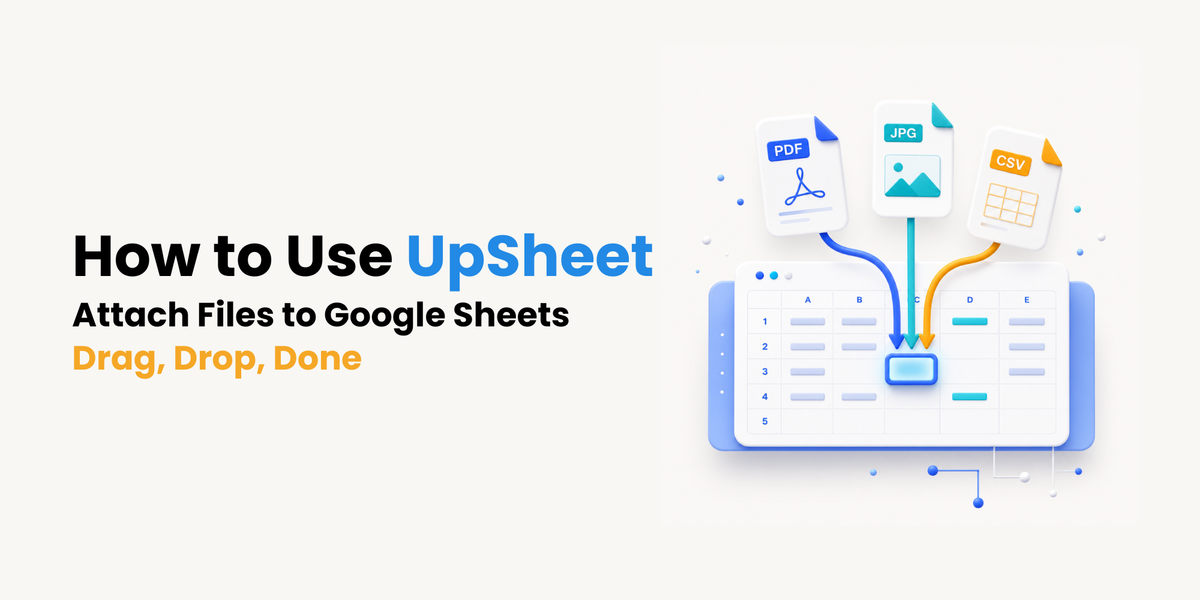
Every minute you spend uploading a file to Drive and then copying the link back into your sheet is time that should go to real work, not to shuffling files around in several different places.
You open a new tab, search Drive, copy the link, paste it into the cell, and then do it all over again on the next row.
That copy-paste loop is exactly what UpSheet removes. Here’s how to get started in just a few minutes.
What is UpSheet?
UpSheet is a Google Sheets™ extension, built by The Conductor, that lets you drag files straight into spreadsheet cells, turning an ordinary Google Sheet into a centralized file hub.
Instead of bouncing between Drive and Sheets, you just Drag & Drop the file you want to upload right onto the sheet. UpSheet then automatically creates a folder in your Google Drive to hold it, and you, your clients, or your colleagues can open that file simply by clicking the cell.
Get started in just 2 steps: install and attach
H3: Step 1, Install UpSheet from the Google Workspace Marketplace
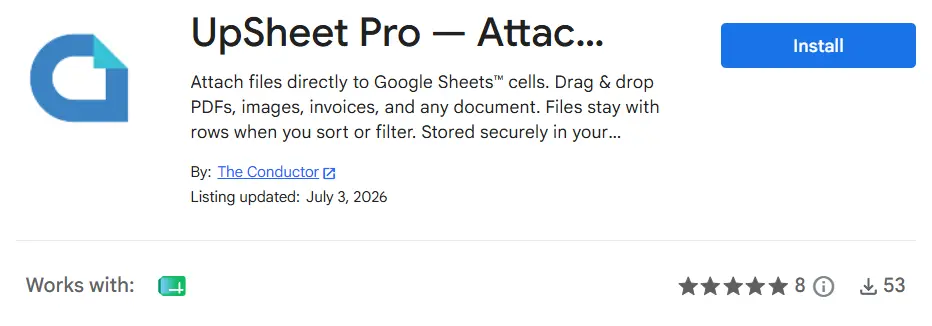
Once it’s installed, UpSheet lives right inside Google Sheets, so there’s no separate app to open.
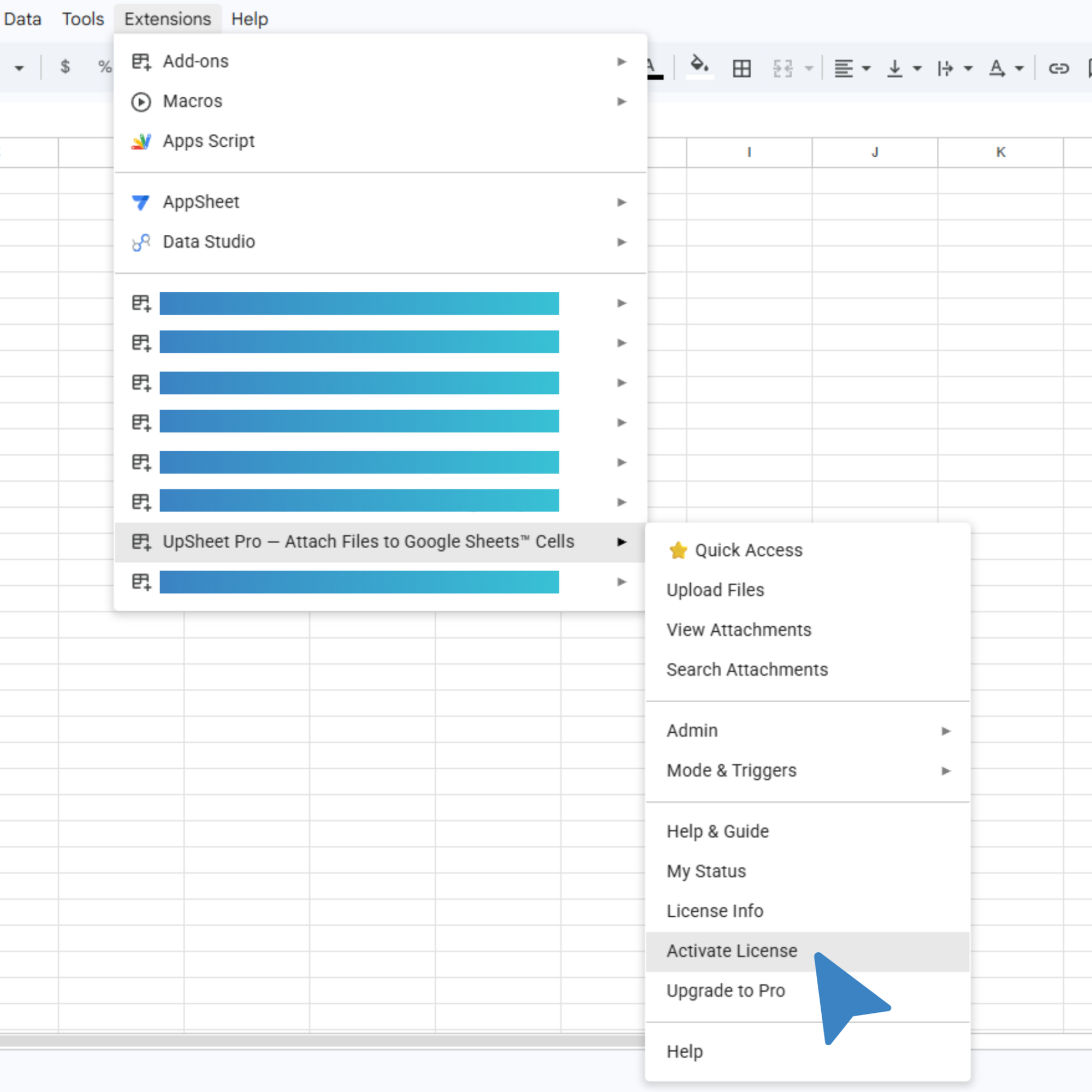
- Open any Google Sheet.
- Go to the Extensions menu at the top.
- Select UpSheet.
- Click Activate License.
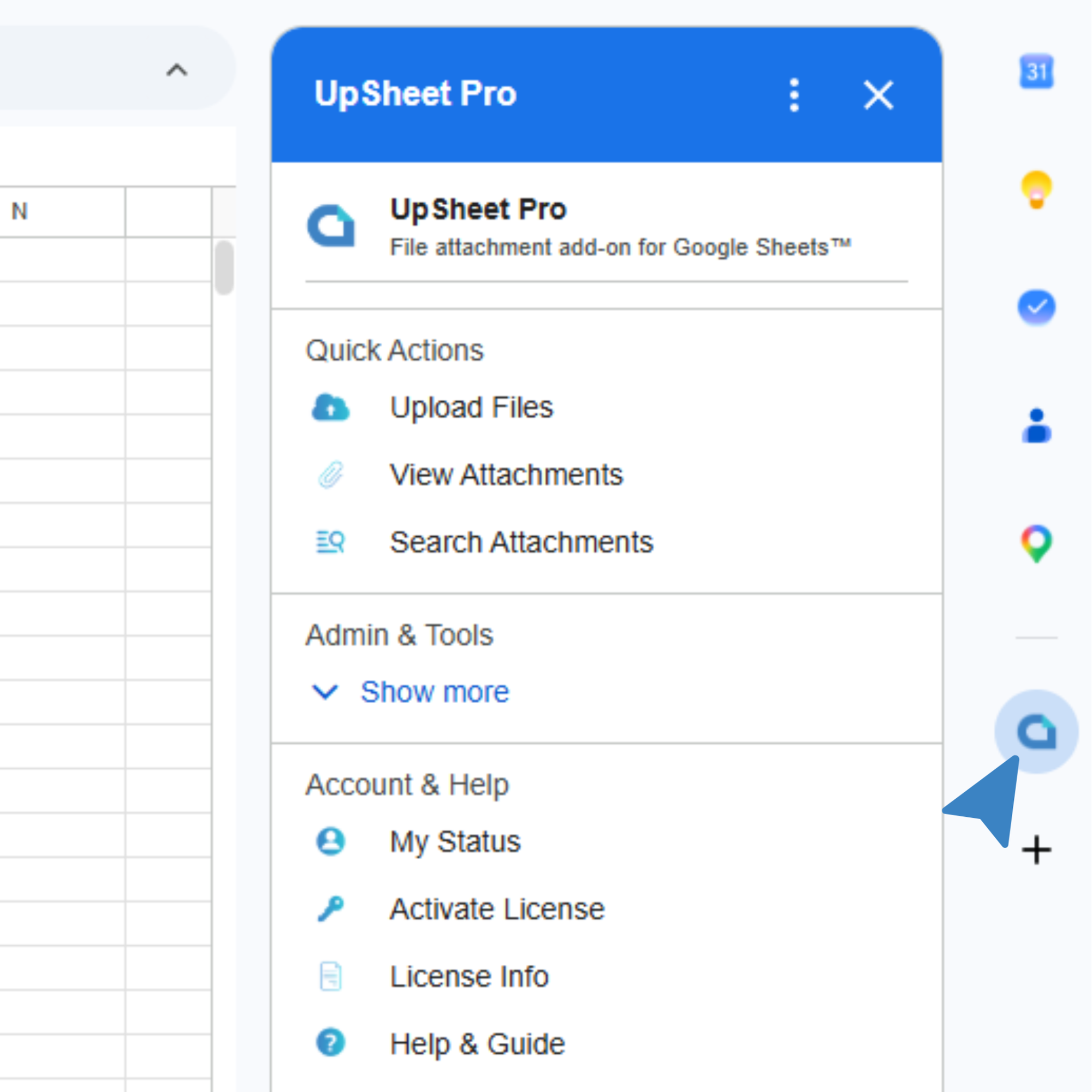
UpSheet opens as a sidebar on the right of your sheet, so you never have to leave the page. Uploading files, finding files already in the sheet, and managing your folder all happen right from the UpSheet sidebar.
The 14-day free trial gives you the full feature set, so you can try the real workflow before deciding anything.
Step 2, Attach a file with Drag & Drop
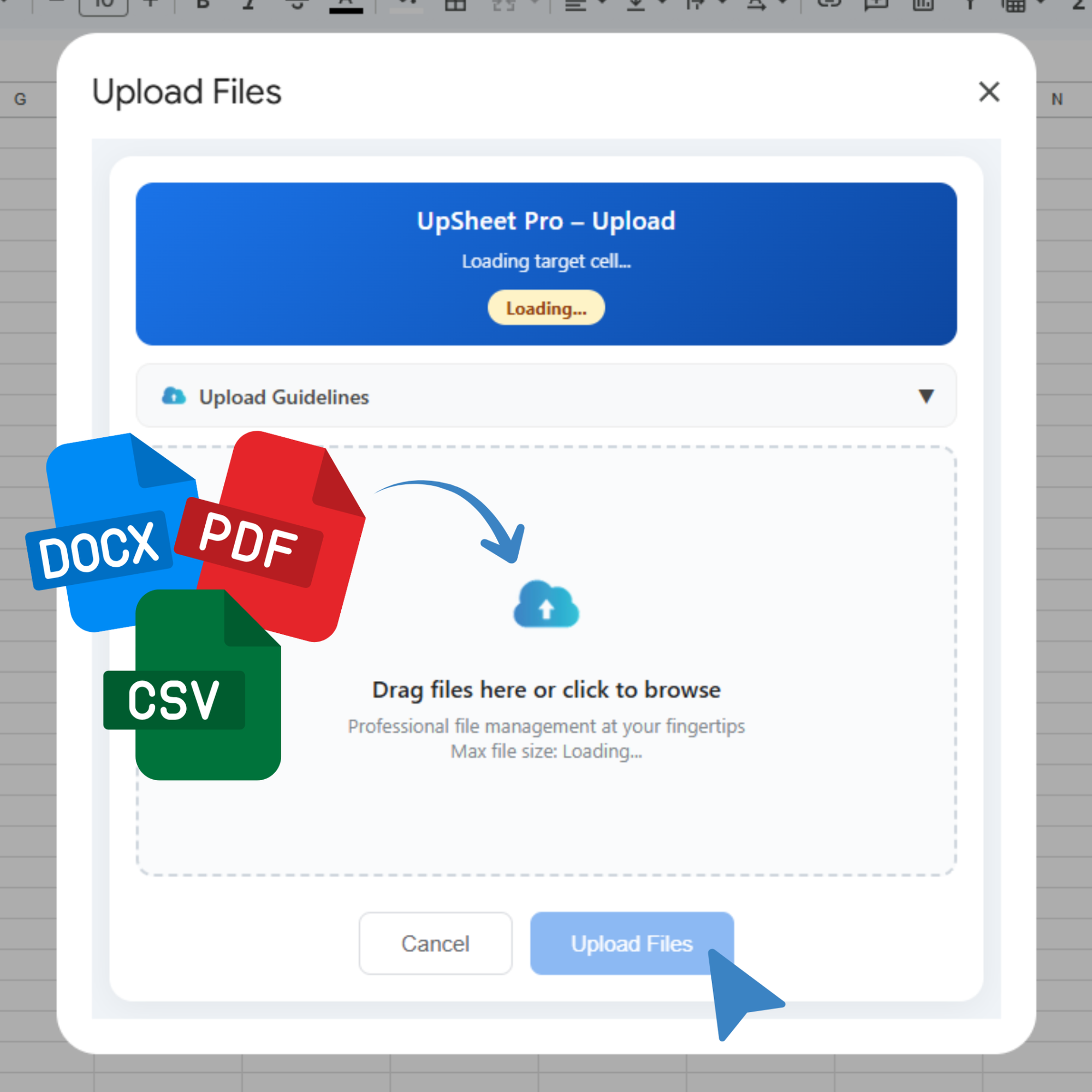
Now for UpSheet’s core feature: Drag & Drop, dragging the file you want to upload straight onto the sheet. It’s simple:
- Click the target cell so UpSheet knows where the file should land.
- Click Upload Files from the sidebar or the Extensions menu.
- Drag a file from a folder on your computer onto UpSheet’s upload area.
- Press Upload Files to confirm your upload.
That’s it, UpSheet uploads the file to Drive and drops a link into the cell. No new tab, and you don’t have to upload the file to Google Drive yourself.
That’s the whole idea behind Drag, Drop, Done.
You can attach more than one file to a single cell, too, handier than copying and lining up a stack of links by hand.
Frequently asked questions
What is UpSheet used for?
UpSheet lets you attach files directly to Google Sheets cells by dragging and dropping them, so you can reach documents, images, PDFs, and other files right from the cell. It turns a spreadsheet into a centralized file hub.
Do I need to leave Google Sheets to use UpSheet?
No. UpSheet runs as a sidebar inside Google Sheets. You upload, view, and search files without opening a separate app or tab.
Where does UpSheet store my files?
Your files stay in your own Google Drive. UpSheet only creates a link in the cell, so your files and data stay secure.
Does UpSheet have a free version?
Yes. You can try UpSheet free for 14 days with the full feature set. The Pro plan is $9.99/month (or $79.99/year).
Can a team attach files to the same sheet through UpSheet?
Yes. Others on your team or department can attach files through UpSheet in a shared central sheet. All the files are collected into the first folder that was created.
Open a sheet, attach a file, and let UpSheet handle the rest.
Organize Your Work, Simplify Your Life. Drag, Drop, Done. — start your 14-day free trial. It works inside the Google Sheet you already use, so there’s nothing new to learn.